
SEO tip: Optimizing images is one of the easiest ways to boost your search rankings and improve site performance. Search engines prioritize fast-loading pages, and so do your users.
In this tutorial, I’ll show you how to optimize your images for SEO while keeping them high-quality and fast-loading. Thanks to Cloudimage by Scaleflex for sponsoring this issue!
Let’s get started.
Step 1: Choose the right image format
Choosing the right image format is the first important step – it’s a balance between image quality and performance. Each format serves a unique purpose:
-
JPEG is best for detailed photos and colorful images
-
PNG is ideal for logos or images that require transparency
-
WebP is a modern format that balances compression and quality.
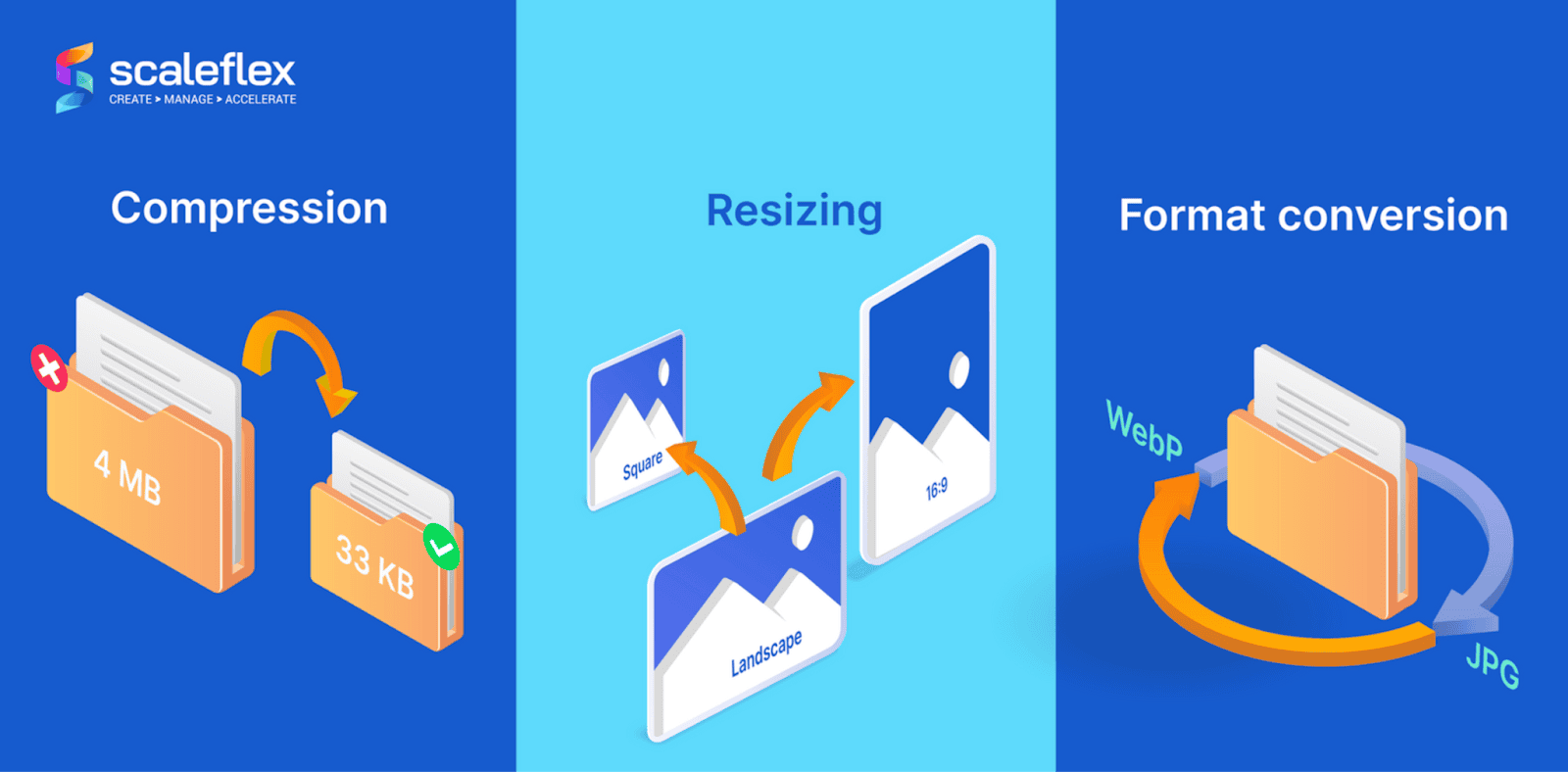
Cloudimage’s format conversion feature automatically converts your images to the best format for every browser, so you don’t have to worry about it.
Step 2: Compress your images
Large image files slow down your website, increasing bounce rates and frustrating users. Compressing your images reduces file sizes without sacrificing quality.
Cloudimage makes this process easy with on-the-fly image resizing and compression. You can reduce file sizes or apply filters like contrast and blur to get lightweight, optimized images that load faster. Plus, their multi-CDN acceleration ensures these images are delivered instantly worldwide.

Step 3: Write descriptive alt text
Search engines rely on alt text to understand what your images are about. Good alt text also improves accessibility for visually impaired users.
Here’s how to write effective alt text:
-
Clearly describe the image
-
Include relevant keywords naturally
The AI-powered Image-to-text feature by Cloudimage can help you handle huge amounts of alt texts, however it is a paid add-on.
Pair your alt text with descriptive filenames, like seo-dashboard.jpg, instead of something generic like IMG_0123.jpg.
Step 4: Resize your images
Images should look great on all screen sizes – desktops and phones. You need to resize them for responsiveness to ensure they load faster and fit properly on any device.
Manually resizing can be tedious, but Cloudimage’s responsive image resizing feature takes care of it automatically.
Their resizing servers are located in Canada, France, and Singapore. They deliver scaled images tailored to the user’s device, speeding up load times and improving UX.
Step 5: Implement lazy loading
Lazy loading makes sure that only the images visible on the screen are loaded. This is really helpful for improving page speed.
You can let Cloudimage handle it for you with their built-in lazy loading feature.

Step 6: Test and monitor your image optimization
Once you’ve optimized your images, it’s important to test their impact on your website. In Cloudimage, you can view your analytics to track image performance.
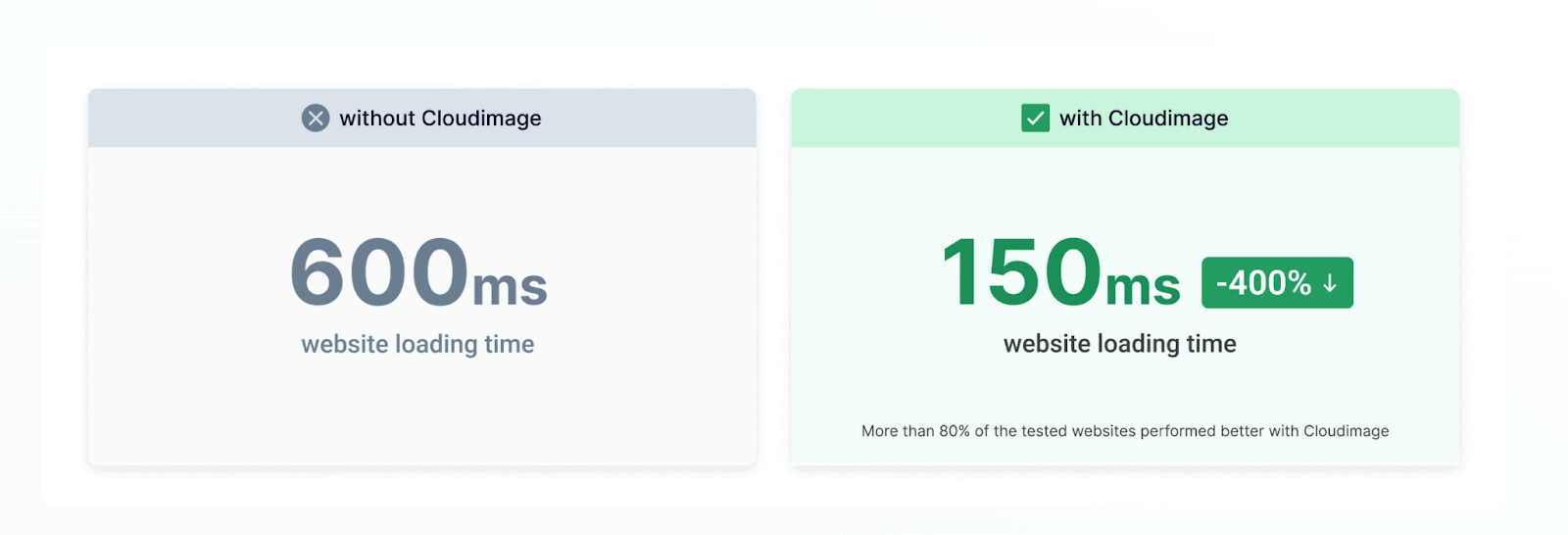
Optimizing our images is an easy SEO win that will speed up loading times, give a better user experience, and improve your Core Web Vitals scores – all things that will help you rank higher and faster.
Cloudimage simplifies the entire process, from compression to responsive resizing, lazy loading, and CDN delivery.
Start by running a free performance report or sign up for a free Cloudimage account.
-Jeremy