Imagine building a beautiful store but forgetting to unlock the front door. You might have the best products in the world, but if people can’t get in, you won’t make a single sale. This is exactly what happens when your website has hidden technical issues.
When your technical foundation is shaky, your rankings and traffic will suffer. It doesn’t matter how good your keyword research is if the Googlebot cannot reach your pages.
A technical SEO site audit is the process of checking your digital door locks and hinges to make sure every search engine can enter and rank your content.
Modern SEO is about more than just keywords. It is about how well your site’s performance meets the needs of both users and search engines. Thats crawlability, indexability, and performance all-in-one.
The impact of these technical features is massive. A report by HTTP Archive shows that only about 50% of websites passed the Core Web Vitals assessment on mobile as of December 2025, indicating that the majority still have significant performance gaps. If you’re in the other 50%, you’re leaving money on the table.
A regular technical SEO site audit is one of the fastest ways to spot and fix these bottlenecks before they drag down your visibility.
In this guide, you’ll learn a complete step-by-step process to analyze your domain. We will cover everything from crawlability to mobile-friendly design.
While this is an intermediate-level task that usually takes between five and ten hours, depending on your site size, you will finish knowing exactly how to use tools like Google Search Console and Screaming Frog to fix your site.
Highlights
- A technical SEO site audit looks at your website infrastructure to find crawlability, indexation, and performance issues that hurt rankings.
- You need the right SEO tools like Screaming Frog, SiteBulb, and PageSpeed Insights to get a full report on your site.
- It is best to fix high-priority issues first, such as indexability blocks, 404 errors, and Core Web Vitals.
- Doing a site audit every quarter prevents technical debt and helps you stay ahead of Google algorithms.
- Most technical SEO problems fit into categories like site speed, on-page SEO, or structured data.
What is a technical SEO site audit?
A technical SEO site audit is the process of checking the “under the hood” parts of your website to ensure it is healthy. This isn’t just about finding a single error but about understanding the entire ecosystem of your site.
This audit covers everything from how an engine reads your code to how quickly your pages load for customers. It is an end-to-end checkup for your digital health.
Without a clean audit, most of your content might never even be seen.
Ahrefs research indicates that only 3.45% of all web pages receive any organic traffic from Google. Only 0.07% get more than 1000 visits. If you want to be part of that, you must start with a strong foundation. This is especially true if you are planning a website redesign SEO project, as technical errors during a move can be devastating.
Technical SEO audit vs. content audit vs. backlink audit
Each audit type focuses on a different ranking factor, but they all work together to improve your visibility.
| Audit Type | Focus Area | Goal |
| Technical SEO | Infrastructure, code, and health | Improve crawlability, speed, and indexation |
| Content audit | On-page copy and quality | Improve relevance and keyword targeting |
| Backlink audit | Off-page links | Improve Domain Authority and trust |
While a content audit looks at your title tags and meta descriptions, a technical audit looks at the URLs and HTTP status codes behind them.
A backlink analysis looks at who is linking to you from other search engine results, while technical SEO ensures your internal links are guiding search engines through your own content effectively. Think of technical work as the plumbing and content as the paint.
What does a technical audit cover?
A proper audit examines several buckets of information, or areas. Each area plays a role in how a search engine perceives your site.
Site architecture and crawlability
Your site structure needs to be logical so that search engines can find every page. If you are running an enterprise SEO audit, this becomes even more complex with thousands of URLs.
If an engine cannot crawl a page, it will not be indexed. When Google cannot reach your core pages, your search strategy falls apart before it even begins.
Indexation and rendering
Indexation is the process of Google adding your pages to its database.
You need to make sure your pages are part of this list and that the Googlebot can render your JavaScript correctly.
Modern sites often use heavy code that bots struggle to “see” without a proper rendering setup.
Page speed and Core Web Vitals
Page speed is a critical ranking factor in 2025.
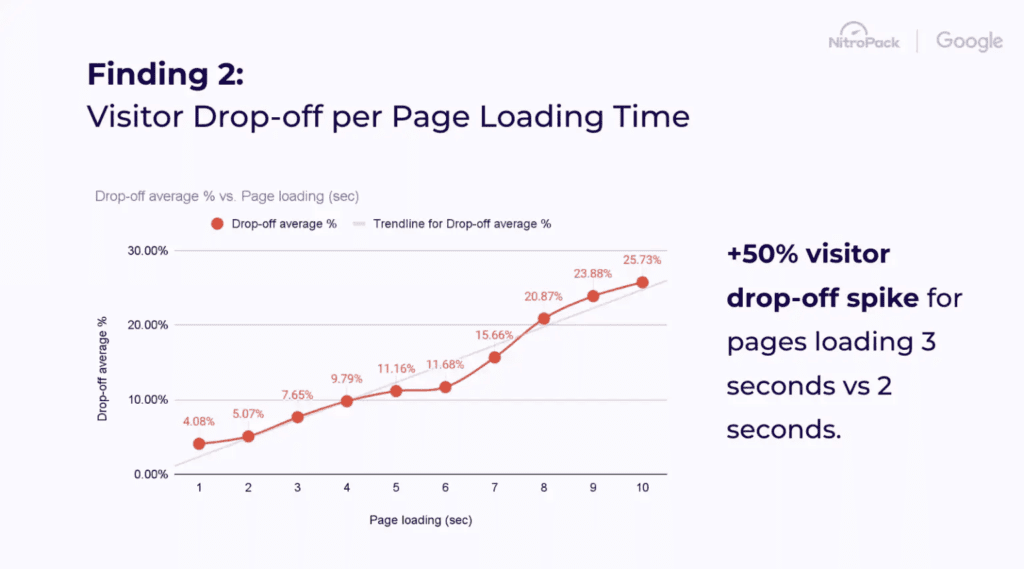
A study by Nitropack and Google found that pages loading in 3 seconds had 50% more bounces than those loading in 2 seconds. Page speed is where even tiny improvements can lead to massive revenue gains.
Mobile-friendliness
Most people today are always on the go, accessing websites and social media on their phones within seconds. According to Statista research, non-tablet mobile devices accounted for 62.73% of traffic in Q2 2025.
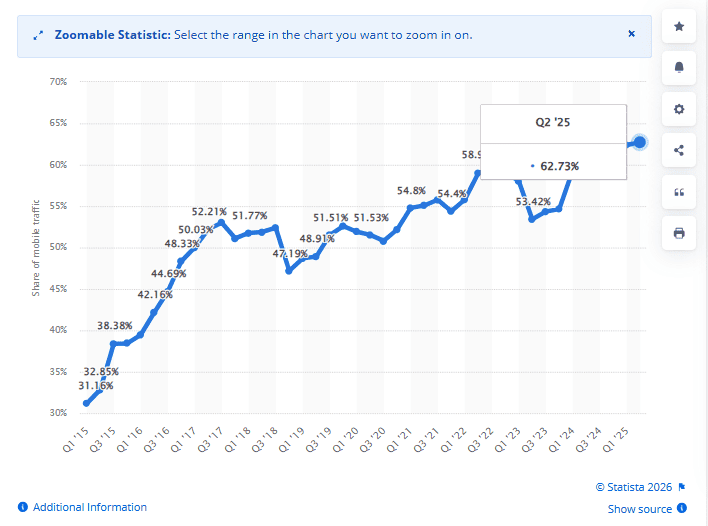
If your website is not mobile-friendly, you are frustrating more than half of your visitors. Google uses mobile-first indexation, meaning it looks at your mobile site first to decide your rank.
Site security and data integrity
HTTPS is a standard requirement for any modern website. It protects customer data and acts as a minor ranking factor.
An SSL certificate is the first thing a search engine checks to see if your domain is trustworthy.
Structured data
Search engines use structured data to grasp the context of your content.
Using Schema.org markup allows you to appear in rich results like recipes or review snippets. This increases your click-through rate in the SERP.
Benefits of regular technical audits
Conducting a regular SEO audit helps you find hidden issues that are holding your rankings back. It is the best way to improve user experience and prevent indexation problems before they grow.
When you look at your Google Search Console report, you might find that hundreds of pages are being excluded.
This information is vital for staying ahead of search engine optimization (SEO) trends. It ensures your visibility remains high even when competitors are fighting for the same keywords.
How often to conduct technical audits
For most businesses, a quarterly audit is enough.
However, if you run a large enterprise site, you might need a monthly checkup. This helps you avoid common SEO mistakes and issues that can plague your SEO efforts and cost you thousands of search volume clicks.
Essential tools for technical SEO site audits
To do a proper audit, you need the right tools. There are many agencies that charge a high cost, but you can do a lot of it yourself with the right SEO tools once you take the time to learn SEO from reliable resources.
Some of these tools are completely free (like Google DevTools and Schema Markup Validator). Others have a free option with limits or require a paid plan, especially if you’re doing a lot of testing (such as BrowserStack).
Before running tests, be aware that you’ll need to use a combination of the following tools for comprehensive coverage.
Crawling & analysis tools
These tools crawl and analyze your site to identify errors or potential issues that may prevent GoogleBot from accessing your pages.
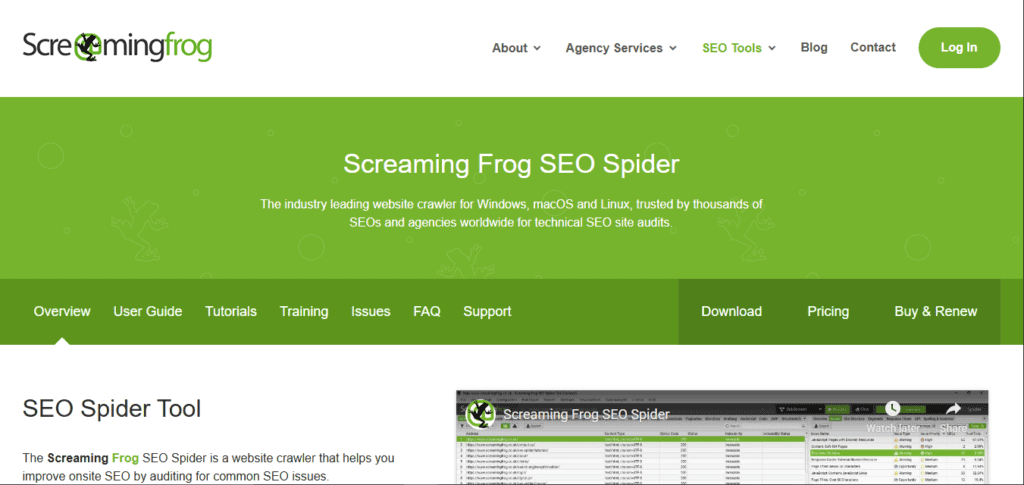
Screaming Frog SEO Spider
Screaming Frog is the gold standard for SEO professionals. It is a desktop crawler that can find 404 errors, audit title tags, and analyze internal links.
SiteBulb
SiteBulb is excellent for those who want visual reports. It provides interactive data that makes it easier to understand complex technical SEO issues.
Lumar
Lumar (formerly DeepCrawl) is a robust cloud-based solution for huge websites. It handles millions of URLs without slowing down your computer.
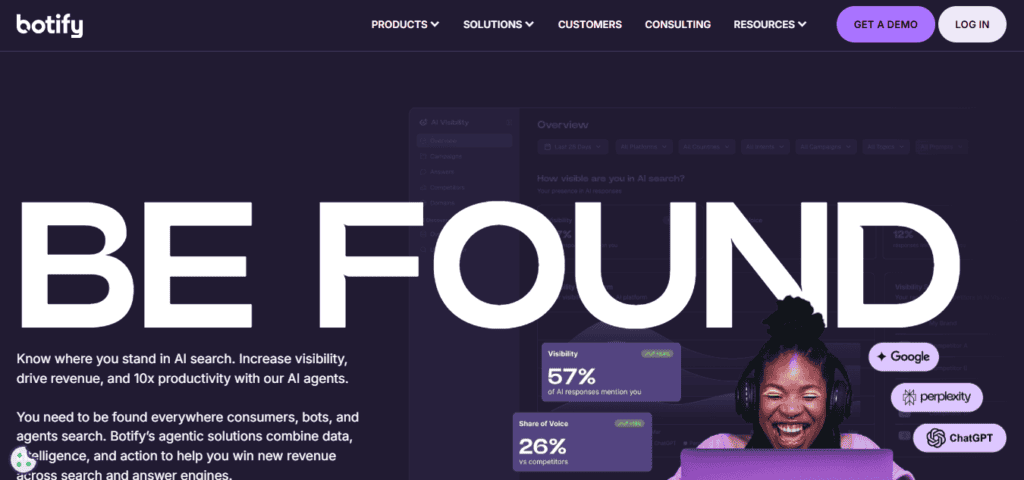
Botify
Botify is an enterprise-grade AI tool that links your crawl data with real search engine behavior. It is excellent for high-level SEO strategies.
AI SEO tools like Botify help you check how your pages are performing with AI overviews and large language models (LLMs) like ChatGPT.
Search Console & Analytics
These tools provide information about what gets indexed and how many people visit your website and stay there.
Google Search Console
Google Search Console is a free tool that every owner must use. It shows you exactly which web pages are indexed and if you have any crawl errors. It is the most reliable way to see field data.
Bing Webmaster Tools
While Google is the giant, Bing Webmaster Tools provides unique information about your performance on other search engines.
Google Analytics 4
Google Analytics helps you understand how people interact with your content. Tracking this performance over time helps you answer the question “Is SEO still worth it?” for your specific business.

Performance testing
Performance tools run tests on your site to check how fast it loads and if it passes Core Web Vitals.
Google PageSpeed Insights
Page Speed Insights gives you a score from 0 to 100 based on your Core Web Vitals. It provides specific optimization suggestions for every page.
GTmetrix
GTmetrix gives you a comprehensive breakdown of how your website loads. It shows a waterfall chart so you can see exactly which script or image is slowing you down.
WebPageTest (Catchpoint)
Catchpoint WebPageTest allows you to run speed tests from different locations around the world. This is critical if your customer base is global.
Chrome DevTools
Use Google’s mobile-friendly test Lighthouse to ensure your site looks good on all screens. You can use Lighthouse on Chrome by opening web developer tools (F12 on Windows):
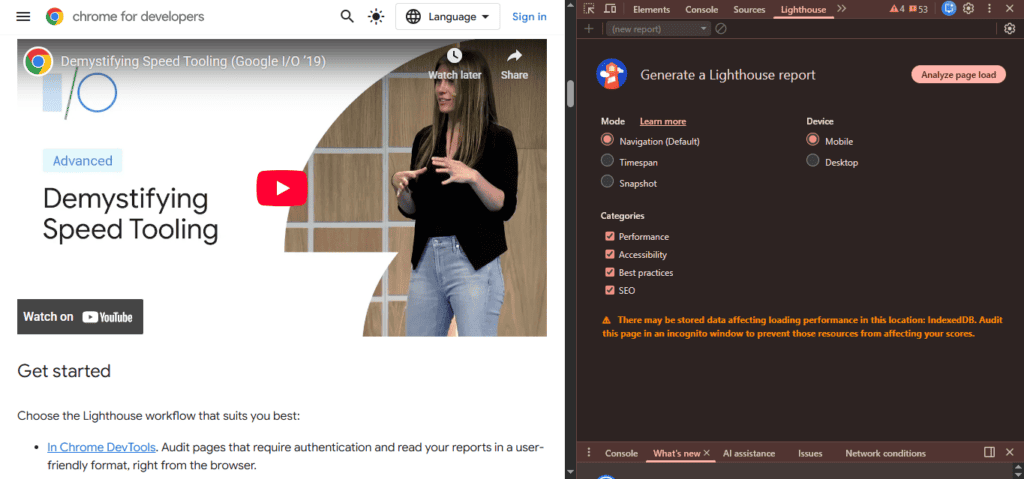
Screenshot taken by the author
Once you’re in Chrome DevTools, take a look at the Performance, Memory, and Network tabs. These give you valuable information you can use to quickly optimize parts of your website, such as:
- Which files are taking the longest time to download or stream
- Which file formats are being downloaded
- Which files aren’t cached
You can also learn the answers to important questions, including:
- Is there a JavaScript process that’s taking too long or too much memory to run?
- Are there images or videos below the fold that aren’t lazy-loaded?
Here’s what the Network tab looks like:
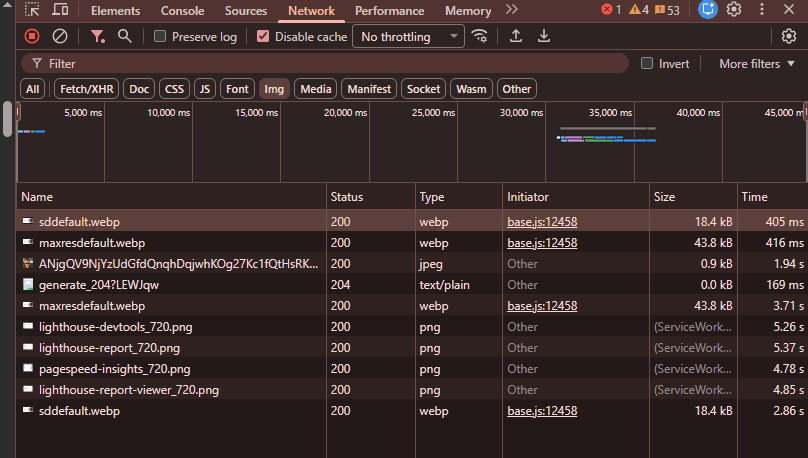
Screenshot taken by the author
Additional helpful tools
Here are other tools you might want to use, especially if you’re managing a large or enterprise site.
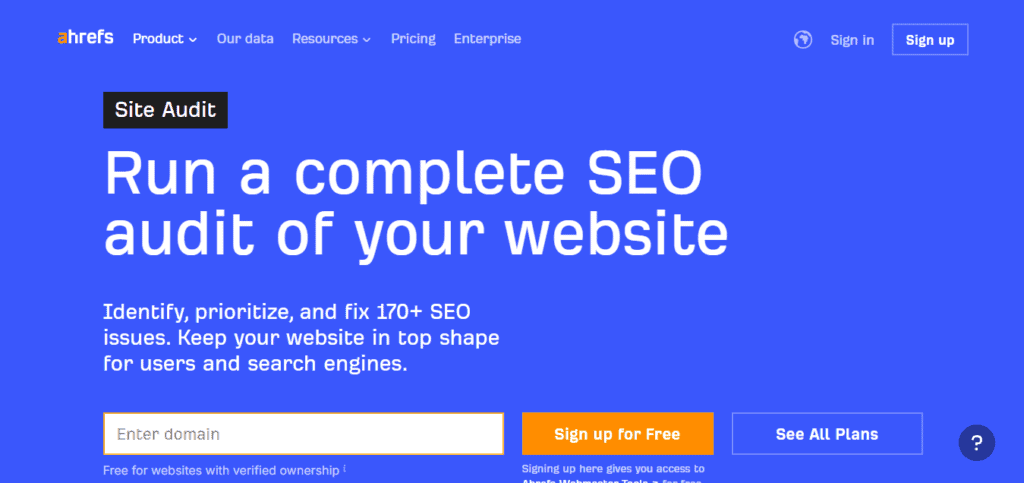
Ahrefs Site Audit
The Ahrefs Site Audit tool is straightforward to use. It automatically flags issues like broken backlinks and missing meta tags.
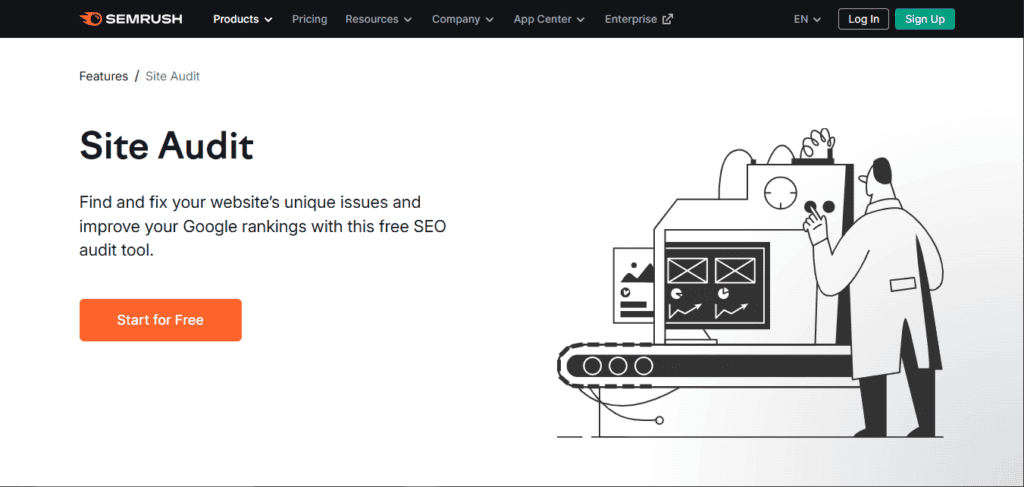
Semrush Site Audit
Semrush Site Audit is similar to Ahrefs’ tool. It is a great all-in-one platform for checking both your technical health and your competitors.
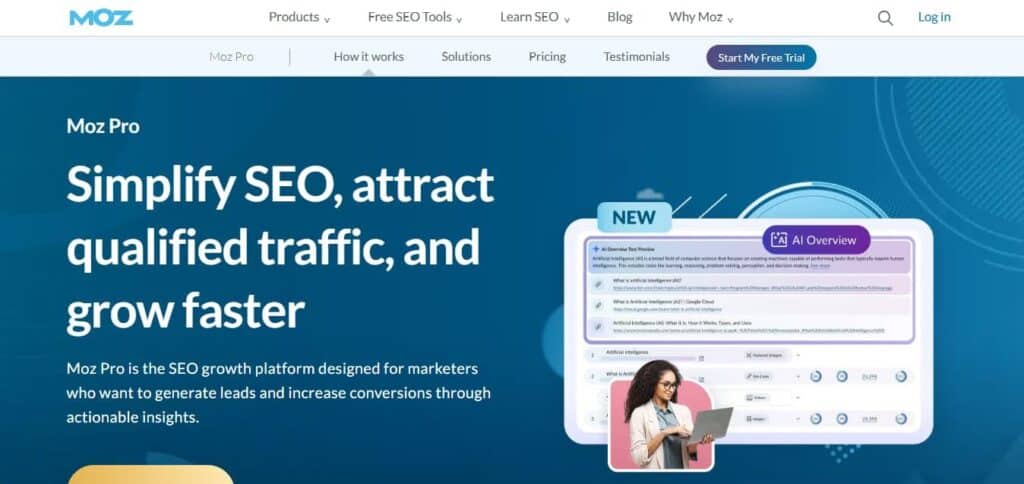
Moz Pro
Moz Pro provides a robust site crawl tool that identifies technical SEO issues and prioritizes them based on impact.
It is an excellent choice for agencies or businesses that want a user-friendly interface combined with deep authority metrics, like domain authority.
Schema markup validators
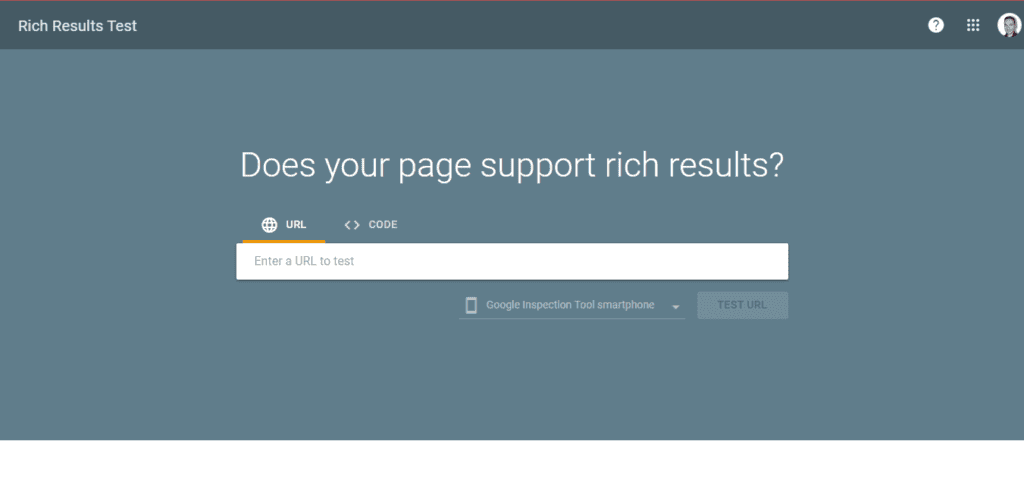
Always test your schema markup to ensure there are no errors. The Rich Results Test from Google is the best way to see if your structured data is working.
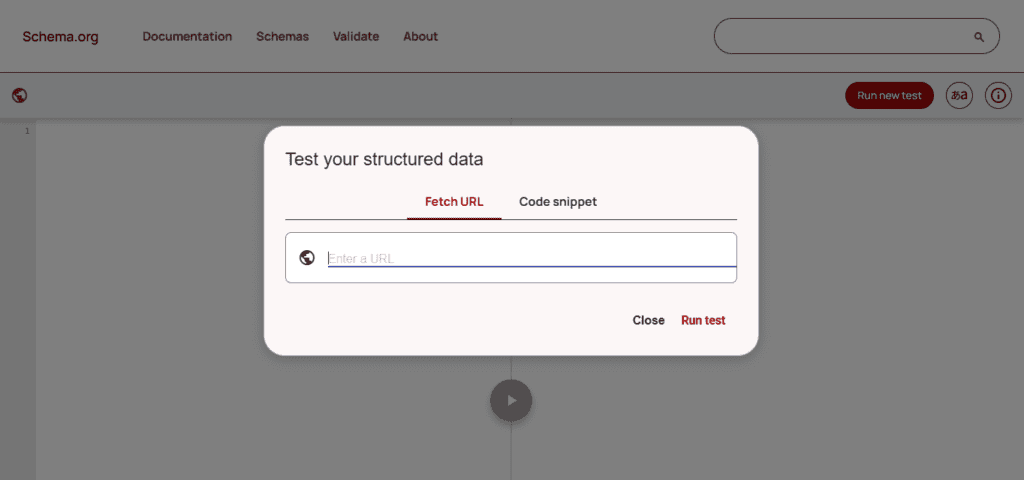
Another great tool is the standard Schema Markup Validator from schema.org. This site is a collaborative community for schema standards. Besides global participation, there are also contributors from Google, Microsoft, and Yahoo.
Mobile-friendly testing tools
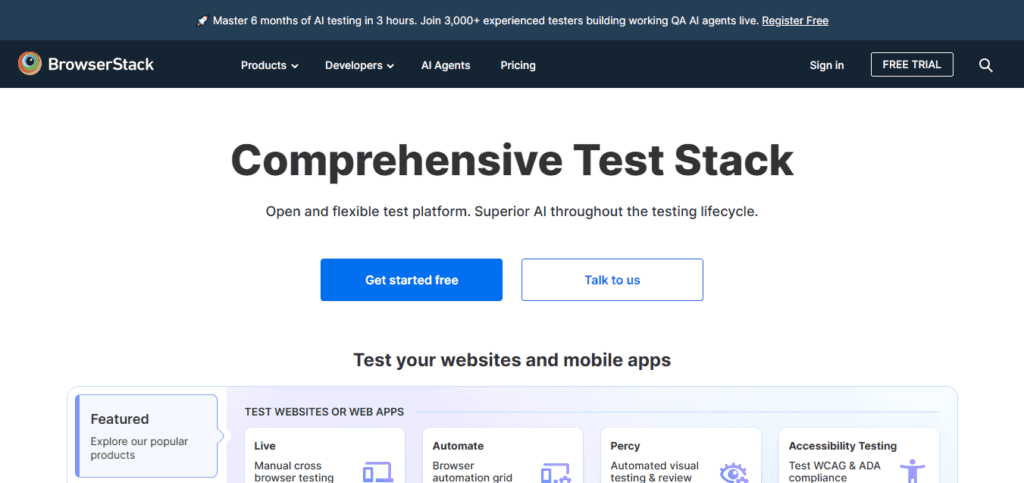
You can use tools like BrowserStack to see how your website renders on different browsers, phones, and tablets.
Step-by-step technical SEO site audit process
To execute a thorough technical SEO site audit, follow this logical sequence of steps. This is the part where you roll up your sleeves and look at the real data.
Step 1: Crawl your website
The first step is to use a crawler to map out your entire domain. This gives you a bird’s-eye view of your architecture.
Set up your crawler
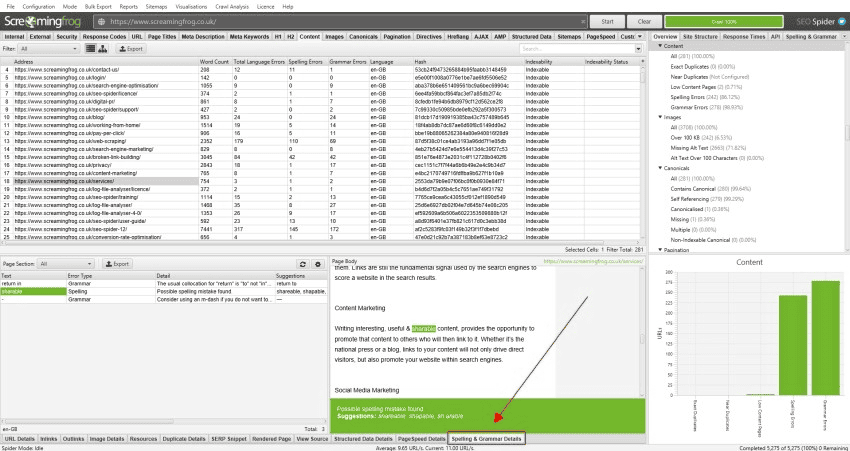
Open Screaming Frog and enter your URL. You want to make sure your settings are optimized for speed. For example, you can tell the spider to ignore images if you only want to check your own internal pages.
Configure crawl settings
Decide if you want the tool to follow your robots.txt rules, such as canonical links. Usually, you want to see what the Googlebot sees, so “respecting” those rules is best.
Also, ensure JavaScript rendering is enabled. Many modern sites use frameworks like React that a basic spider might miss. If you don’t render the code, you might think a page is empty when it actually has plenty of content.
Run full site crawl
Start the crawl and let it finish. A small site takes minutes, but a large one might take hours or even days.
While the crawl is running, keep an eye on the “Response Codes” tab. If you see a sudden spike in 5xx errors, your server might be struggling under the spider’s load. If that happens, slow down your crawl speed settings.
Export data for analysis
Once finished, export your Internal All report to a CSV. This is the master list of internal links you’ll use for the rest of your audit.
You can filter this list to find every instance of missing title tags, duplicate meta descriptions, or 404 errors. This spreadsheet is where you will track your progress as you start making fixes.
Initial crawl results review
Now look for immediate red flags.
Are there many 3XX or 5XX status codes? A high number of redirects (3XX) can slow down the user journey.
Server errors (5XX) are even worse because they stop a search engine from seeing your site at all. Finding these quickly gives your development team an easy starting point.
Step 2: Check indexation status
Just because you have pages doesn’t mean Google has them in its search index. If a page isn’t indexed, it won’t show up in any search results.
Review the Google Search Console coverage report
Go to the Indexing section in GSC. Look at the “Excluded” tab to see which pages are not being shown.
Google often excludes pages because they are “crawled – currently not indexed.” This usually means Google found the page but didn’t think it was high-quality enough to keep.
Identify pages excluded from the index
Some exclusions are fine, like those with canonical tags that point to a better version of the same page. But if your main product pages are excluded, you have a problem.
If your pages aren’t getting users because they aren’t indexed, your traffic will never grow. I recently found that when I asked 4 top SEOs about AI, many emphasized that clean architectures are more vital than ever for generative engine crawling.
Check search results manually
Do a manual search for “site:yourwebsite.com”. This gives you a quick idea of how many web pages Google knows about.
If the number is much lower than your actual count, you have an indexation gap. If the number is much higher, you might have a problem with “bloat,” where Google is indexing thousands of useless pages, such as filter results or old tags.
Analyze reasons for non-indexed pages
Check for noindex tags in your metadata. Sometimes developers leave these on by mistake after a campaign goes live.
Also, check whether your robots.txt file is blocking the Googlebot from accessing essential folders. If Google can’t see the page, it can’t index it. This is a common reason why new sections of a site fail to appear in the SERP.
Review XML sitemap submission status
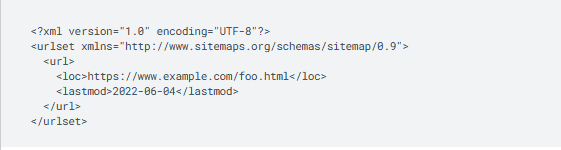
Your XML sitemap is a map for search engines. Ensure it is submitted in GSC and has no crawl errors.
If you have more than 50,000 URLs, you should split your sitemaps into smaller chunks. This makes it easier for Google to process the information without getting overwhelmed.
Verify robots.txt and tag rules
Your robots.txt file should only block pages like your login screen or sensitive admin folders. If you have pages, such as dedicated sales funnels purely for paid media, you might consider blocking them so you don’t get any search traffic that could skew your reporting.
Then, use Screaming Frog to filter for noindex tags across your entire site.
If you find noindex tags on pages you want to rank, remove them immediately. Leaving a noindex tag on a major landing page is a common ranking factor killer that can take months to recover from.
Step 3: Analyze site architecture & internal linking
How your pages link to each other tells search engines which ones are most important. A messy structure confuses both users and bots.
Review site structure and depth
Your most important content should be no more than three clicks from the home page. This is known as click depth. A flat, uncomplicated structure like this helps prevent navigation dead-ends.
This is also why you should be structuring content for crawlability, as it allows bots to flow through your pages more naturally. If you bury a page deep in your folder structure, Google will assume it isn’t very important.
Identify orphan pages and link distribution
An orphan page is one with no internal links pointing to it. Since there are no paths leading to it, search engines will struggle to find these. You can also integrate digital PR link building strategies to earn high-authority external citations that point back to these buried pages.
Use Google Search Console to see which pages have the most internal linking to ensure your domain authority isn’t being wasted. Save these URLs in a list, as you’ll want to make sure they load fast and display appropriately on all screen sizes.
Check link distribution, too. Aim for content pages to have a similar average number of internal links, depending on the page size. Look out for any pages that have too many links close to each other, especially in the same paragraph. Too many links clustered together can feel overly salesy and degrade the user experience.
Analyze anchor text usage
Avoid using “click here” for your links. Instead, use descriptive keywords that tell the customer what to expect. This helps with on-page SEO and makes your site more accessible.
If you are linking to a site speed guide, use the anchor “site speed guide” instead of just “link” or “read more.”
Verify navigation and breadcrumbs
Your main menu and breadcrumbs help users navigate and provide another layer of internal links. They also appear in SERP features, which can improve your click rate.
Breadcrumbs should follow a logical path like “Home > Category > Product.” This helps a search engine understand the category hierarchy of your shop or blog.
Check for broken internal links
Nothing ruins user experience like a dead link. So find every 404 error instance in your crawl and update it to a live URL or a 301 permanent redirect.
Every time a user hits a broken link, they’re likely to leave your site and go back to the search results, which tells Google your site isn’t helpful.
Ahrefs research shows that 66.5% of links pointing to over two million sampled websites have rotted in the last nine years. This is how often basic site hygiene, like fixing broken links, gets ignored even on large, established domains.
Step 4: Evaluate page speed & Core Web Vitals
A fast website is no longer optional. It is a core Google ranking signal. Slow loading times can cause users to abandon your site before they have a chance to engage with your brand.
Test key pages with PageSpeed Insights
Run a test on your main pages, such as the home page, a product page, and a blog post. You should aim for your largest content paint (LCP) to be under 2.5 seconds to provide a “good” experience. If your scores are in the red, identify the specific scripts or assets that are blocking the main thread.
Review Core Web Vitals metrics
The most important metrics to watch out for are largest contentful paint, interaction to next paint, and cumulative layout shift.
Largest contentful paint (LCP):
This measures how fast the largest element on your page loads, such as a hero image or a main heading. A 2023 Shopify case study shows that the brand Carpe improved LCP by 52% and saw a 10% increase in traffic. This led to a 5% lift in online store conversion rate and a 15% boost in revenue, proving how much fixing slow LCP can pay off.
To fix LCP, you often need to compress images or remove render-blocking code that stops the top of the page from loading quickly. Then, enable prefetching for any assets before the fold (like hero images and critical JS).
First input delay (FID) / Interaction to next paint (INP):
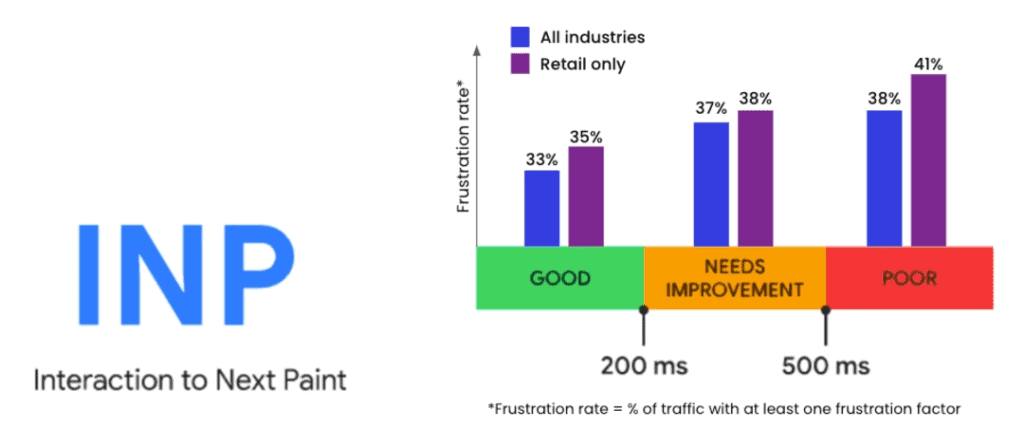
INP replaced FID in early 2024 to measure responsiveness better. It tracks how long it takes the browser to respond when a user clicks a button or menu. You want this to be under 200ms. This metric gives a more accurate view of user experience because it covers the entire page lifecycle, not just the start.
In fact, research by Content Square found that users who experience poor INP were 15% more likely to get frustrated than those who experienced good INP.
Cumulative layout shift (CLS):
This measures if elements jump around while loading. For example, if a button moves down as you are about to click it because an ad loaded above it, that is a high CLS.
CLS can have disastrous effects on the user experience. If there are two buttons on top of each other, one says “Pay now”, and the other says “Cancel”, and the user clicks “Cancel” but the page shifts and they hit the “Pay now” button by mistake, that’s definitely going to lead to complaints. Maybe even a chargeback on their credit card and a negative review.
Aim for a CLS score below 0.1. You can fix this by setting “height” and “width” attributes on your images and containers.
Check mobile vs. desktop performance
Users expect the same speed on their phones as they do on their laptops. Often, a website passes the desktop test but fails the mobile test due to limited processing power on handheld devices or slower data networks. But since Google uses mobile-first indexing, your mobile score is what really counts for your rank.
Use PageSpeed Insights to compare the two. If there is a large gap, it usually means your mobile theme is loading too many unnecessary features or scripts that belong only to the desktop version.
Identify common speed issues
The most common issues are:
Image optimization needs
Oversized images are the #1 cause of slow pages. You should always use modern formats like WebP or AVIF, which offer much better compression than older formats like JPEG or PNG.
Also, implement lazy loading to ensure images only load as the customer scrolls. This prevents the browser from downloading every file at once, which speeds up initial paint.
Render-blocking resources
These files are usually CSS or JavaScript. They stop the page from showing up until they are completely loaded.
To fix this, you can defer non-essential scripts so they load after the main content is visible.
For critical styles, consider using “inline” CSS to give the browser the instructions it needs to render the top of the page immediately.
Server response time
If your server takes too long to answer, your site’s performance will suffer, no matter how light your code is. This is often measured as Time to First Byte (TTFB).
You can improve TTFB by upgrading your hosting, using a CDN, or enabling server-level caching. A CDN stores copies of your site on servers around the world, so data doesn’t have to travel as far to reach the people visiting your site.
Browser caching
Caching allows a search engine user’s browser to store parts of your website locally. When they visit a second page, their computer doesn’t have to download your logo or menu again.
Setting long expiration dates for static assets like images and fonts can drastically reduce load times for returning visitors.
Code minification opportunities
Minification is when you remove unnecessary spaces, comments, and characters from your HTML, CSS, and JavaScript. This makes the files smaller and faster for the Googlebot to download.
While it might only save a few kilobytes per file, these savings add up across a large domain with thousands of pages.
Step 5: Check mobile-friendliness
If your site is hard to use on a phone, you will lose traffic. Most of your users are likely on mobile devices right now.
Test with Google mobile-friendly test
Enter your URL into the mobile-friendly test tool. It will tell you if your text is too small or if your “viewport” is not set. If your site isn’t ready for mobile, you are ignoring the majority of the internet.
This test is the quickest way to find “tappable elements too close together” errors.
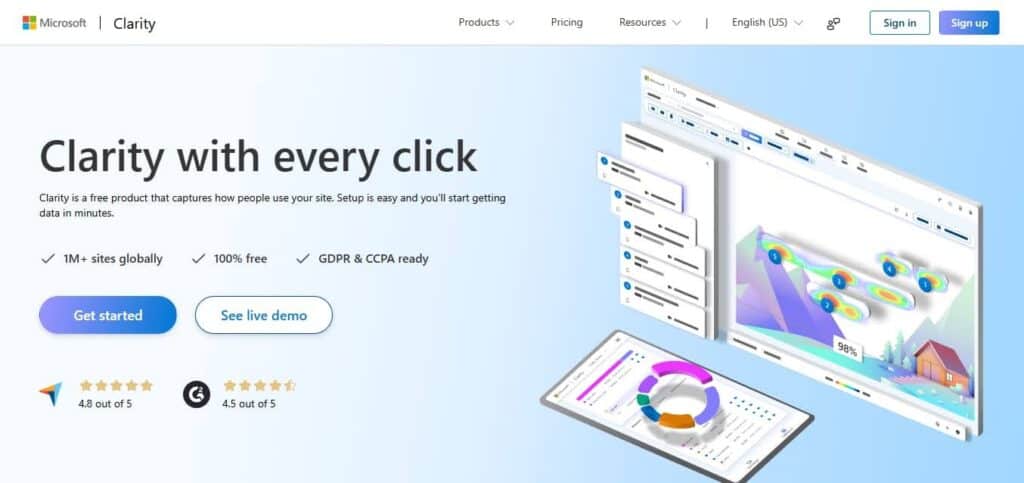
Note that even if the test tool doesn’t report such errors, it doesn’t mean they’re not happening on your site. Confirm by checking heatmaps, such as Microsoft Clarity, especially if you serve an older audience or people with larger fingers, like construction workers.
Review mobile usability and design
Check the mobile usability report in GSC for errors. Also, make sure your website uses a fluid grid that adapts to any screen size.
If you have a business with multiple locations, use local SEO tools to see how your regional landing pages perform across locations. If in some places, your website performs worse than others despite solid revenue, that could mean you need to add a closer CDN.
Buttons and links should be easy to tap with a thumb. If they are too close together, users will click the wrong option, ruining your user experience. A high search engine ranking is only possible if your mobile design is flawless.
Test viewport and mobile errors
Ensure your code includes a viewport meta tag. This tag tells the browser how to fit the content onto the screen. Without it, your site might look like a tiny, unreadable desktop version.
Also, avoid using Flash or heavy pop-ups that cover the whole screen. These are often flagged by Google as manual action risks because they are annoying to users.
Finally, open your site in Chrome with mobile emulation in DevTools, or use a tool like BrowserStack to monitor any errors that occur only on mobile.
Step 6: Audit technical on-page elements
The technical implementation of these tags is part of your SEO audit. If the tags are broken, the content doesn’t matter.
Review title tags and meta descriptions
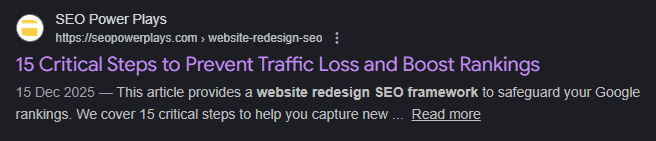
Every page needs a unique title tag (or meta title) entry. Keep title tags between 50 and 60 characters so they don’t get cut off in the SERP. The title tag should either start with or include the primary keyword.
Screenshot taken by the author
Your meta descriptions should be around 155 characters and provide a reason for the user to click. While they aren’t a direct ranking factor, they do affect your traffic. They should be unique and shouldn’t match the title tag or H1.
Analyze header tags and canonicals
Use only one H1 per page and ensure your header tags follow a logical hierarchy from H1 to H6. This helps search engines understand the outline of your article.
Use canonical tags to tell Google which version of a page is the “master” copy. For example, if a product is in two different categories, the canonical tag tells Google which URL to rank. Duplicate content can stop your pages from being indexed entirely if Google gets confused.
International SEO and URL structure
If you have a global brand, use hreflang tags to tell Google which language version to show to different users. This ensures a user in Spain sees the Spanish version of your site. Still, allow visitors to easily change the language if they’re tourists or expats who don’t speak the local language.
Keep your URLs short and descriptive and avoid using messy strings of numbers. Clean internal links are better for both users and bots because they are easier to read and share.
Step 7: Examine HTTPS & security
Security is a trust signal that search algorithms take seriously. If your site isn’t safe, Google won’t want to send people there.
Verify SSL certificate and mixed content
Make sure your SSL certificate hasn’t expired. You can check this by clicking the padlock icon in your browser.
Sometimes an HTTPS page will try to load an image over HTTP. This is called a “mixed content” error. It makes the browser show a “not secure” warning, even if you have a certificate.
Ensure proper HTTPS redirects
You must ensure your “http” version redirects permanently to “https”. Also, check the security issues report in GSC to ensure your site hasn’t been hacked.
You should also monitor your brand mentions to ensure your security status isn’t being discussed negatively in public forums.
Scan your site
Check your website’s security headers with a tool like Real Simple Security. If anything critical is missing, ask your technical team to set it up in a staging area. This allows you to test the new security headers to make sure that your website still works properly without affecting user experience.
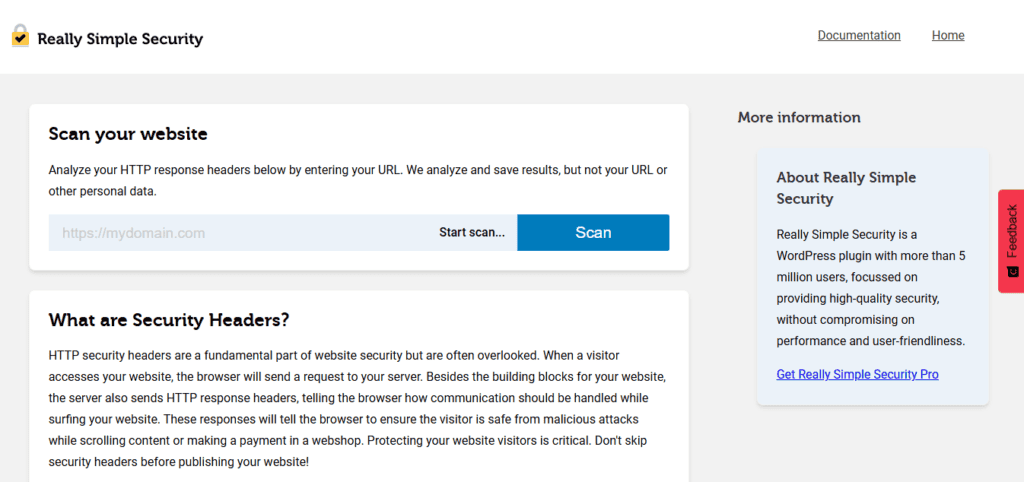
Make sure to keep your site updated and run automatic malware scans. In some cases, GSC may also display warnings about malware. If your site has been compromised, you need to clean it up immediately and request a review.
Step 8: Review structured data
Help search engines help you by using schema markup. This code tells Google exactly what your content is about.
Identify opportunities for schema markup
Start by looking for pages that could benefit from rich results by providing specific information like reviews, recipes, or event dates that people often search for.
For example, if you have a review site, you should use the “Review” schema so your star ratings appear in search results, building trust with your audience.
Test existing structured data with validators
Always use Google’s Rich Results Test and schema validators to confirm that your code is clean and your structured data is readable for the Googlebot.
These tools verify that your markup is implemented correctly on your web pages so they qualify for enhanced display in search engine rankings.
If there’s anything that’s not readable, check for any spelling mistakes, brackets, or HTML errors — they’re usually the culprit.
Check for schema errors or warnings
Look for errors that block your visibility or warnings about missing optional features that could improve your site’s performance or relevance.
Errors usually prevent rich results from appearing entirely, while warnings indicate opportunities for a deeper SEO audit of your metadata.
Review rich results eligibility
Check your Google Search Console to see which web pages actually qualify for SERP features and rich results by implementing your schema markup.
Even if your structured data is correct, Google might not always show the extra information in the search results. Watching this helps you understand how well your site is really doing in search results.
Verify JSON-LD, microdata, or RDFa implementation
Confirm that you are using the best format for your website, as Google usually prefers the cleaner JSON-LD approach over older methods like microdata or RDFa.
Verifying your implementation ensures that your SEO efforts use the latest technical standards for better indexation.
Implement common schema types
You should go beyond the basics to stand out. Here are the most important types:
- Organization schema: Tells Google about your company logo and contact details.
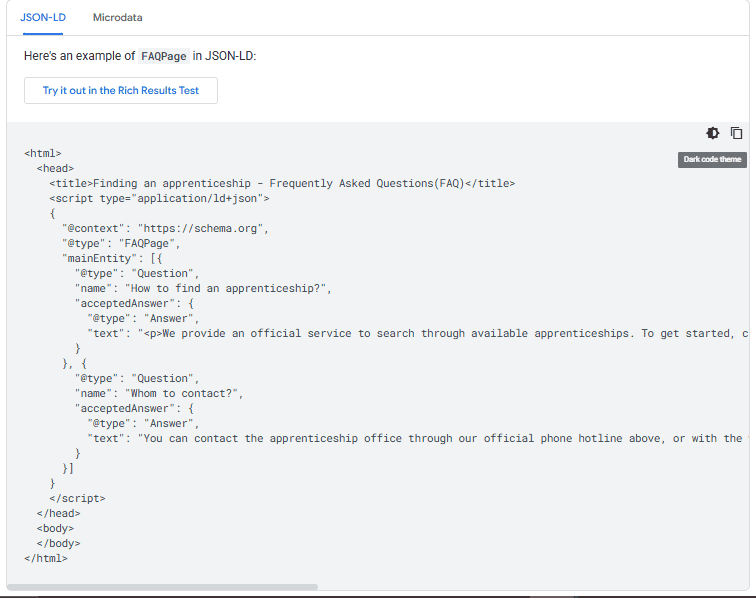
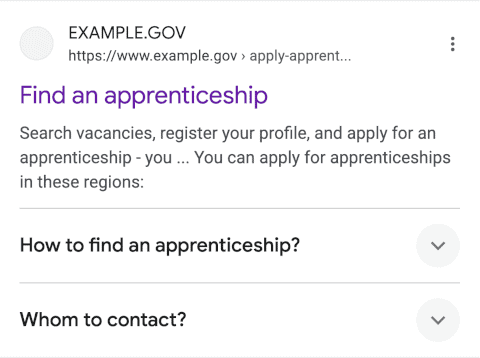
- FAQ schema: Displays questions and answers directly in the search results.
- Local business schema: Essential for showing up in local map results.
- Breadcrumb schema: Helps Google show the site path in the results.
- Product schema: Includes price and availability for e-commerce.
- Article schema: For your blog posts and news.
Example of a FAQ page schema:
How it can show up in search results:
Step 9: Analyze XML sitemaps & robots.txt
These two files are the instructions you give to Googlebot. If they are wrong, you are giving the bot a bad map of your site.
Verify XML sitemap format and submission
Your XML sitemap should be easy to find at yourwebsite.com/sitemap.xml and must use the correct XML syntax to avoid crawl errors.
Always submit it manually in Google Search Console so that the search engine knows exactly where to look for your newest web pages. You can also use WordPress plugins like Rank Math that automatically resubmit the XML sitemap whenever you add new content.
Once submitted, you should review which pages are included or excluded from the XML sitemap for indexation. A common mistake is including noindex pages or temporary URLs, which can dilute your crawlability. Validating the format and the URL list ensures that the engine spends its time on the information that will actually help you rank.
Audit robots.txt and crawl directives
Next, you need to audit your robots.txt file. Check that it has clear rules that don’t accidentally block your most important content.
For example, you should disallow your “checkout” and “admin” pages so that the Googlebot doesn’t waste its time on them. However, be careful not to hide your best landing pages by accident through unintentional blocking in your directives.
Verifying that your crawl directives are correct is essential for maintaining a healthy site performance. Use the Google Search Console robots tester to double-check your rules before saving them to your server. This step prevents minor syntax errors from turning into major indexation issues that could tank your rankings over time.
Step 10: Identify crawl errors & redirects
Cleaning up your links and fixing technical errors is the final step in a technical SEO site audit.
Review 404 errors (broken pages)
Finding 404 errors helps you identify web pages that are missing or deleted.
Broken pages waste your crawl budget, which is the limited time Google spends on your website. Every time the Googlebot hits a dead end, it stops exploring other useful content, which can hurt your overall visibility.
Check for 301 vs. 302 redirects
You should use a 301 for permanent changes and avoid using a 302 unless the move is only for a few days.
301 status codes pass authority to the new page, while 302 redirects do not. Ensuring your URLs use the correct HTTP status keeps your domain authority strong across your entire site structure.
Identify redirect chains and loops
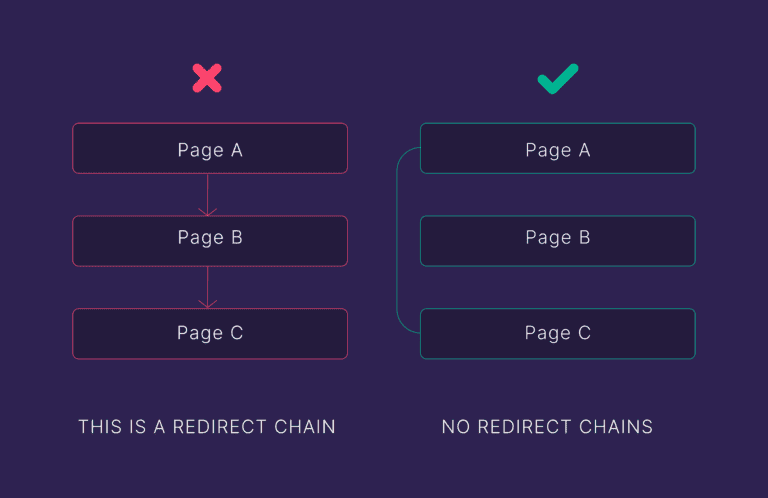
Watch out for redirect chains, where A goes to B and then to C. These slow down your site performance.
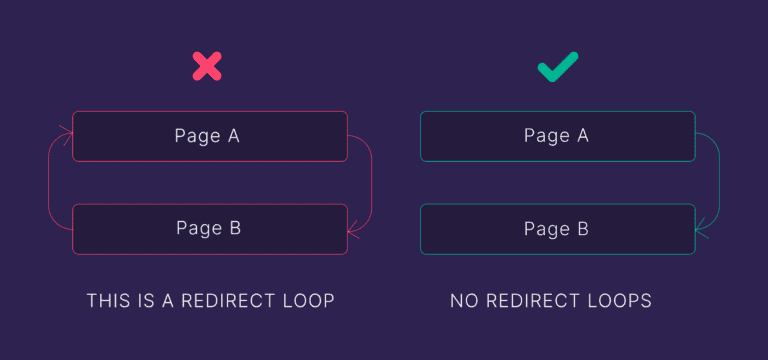
Similarly, you should also avoid loops. These confuse crawlers, waste crawl time, and impact user experience.
Review server errors (5xx codes)
Check your Google Search Console for 5XX status codes that indicate server-level issues. These crawl errors are critical because they mean the search engine cannot access your content at all.
You should also look out for common issues plaguing SEO efforts, like temporary server downtime that prevents your web pages from being indexed correctly.
Check for soft 404s
You should check for soft 404s, where a page looks like an error but tells Google it is healthy by returning a success code. This is very confusing for bots and can lead to ranking drops for important landing pages.
Identifying these ensures that search engine rankings accurately reflect your content’s actual status.
Prioritize high-value broken links
Focus on fixing broken backlinks, since these are links from other websites that you are currently wasting. If you don’t redirect these 4XX pages, you lose all the authority you’ve earned.
Preserving this equity is just as necessary as resource page link building for growing your brand presence and search volume across the SERP.
Common technical SEO issues to look for
While every site is unique, most problems fall into these three categories based on how much they hurt your rankings.
Critical issues
- Blocked resources in robots.txt: These rules can accidentally hide your entire website or key sections from search engines.
- Noindex on important pages: Using the noindex tag on a high-value page prevents it from being indexed by Google.
- Missing or broken canonical tags: This can cause confusion about which version of a page should rank and lead to duplicate content issues.
- Duplicate content: Having the same copy on multiple URLs dilutes your authority and makes it harder for Google to pick a winner.
- Slow page speed (3+ seconds): If your site speed is too slow, people will bounce back to the search results before the page even loads.
- Mobile usability errors: Critical mobile-friendly issues make your website nearly impossible to use on a phone, hurting your search engine ranking.
Important issues
- Poor site architecture: If pages are buried more than three clicks deep, the Googlebot may never find them or think they are unimportant.
- Missing structured data: Without schema markup, you miss out on rich results and SERP features that improve click-through rates.
- Broken internal/external links: Dead links lead to 404 errors, which create a bad user experience and waste your crawl budget.
- Missing alt text on images: Skipping alt text hurts your accessibility and prevents you from ranking in image search.
- Redirect chains: Multiple hops in a redirect path slow down site performance and weaken the link equity being passed.
- Thin content pages: Web pages with very little useful information provide a poor answer to customer questions.
Optimization opportunities
- Suboptimal URL structure: Long URLs with random numbers or parameters make it harder for search engines to understand your content.
- Image compression needs: Large image files are the main cause of poor Core Web Vitals, and they can be addressed with modern tools.
- Inefficient code (CSS/JavaScript): Unminified files and large scripts slow down browser rendering of your website.
- Missing schema markup: Adding more specific types of structured data can help you stand out from competitors.
- Unnecessary plugins/scripts: Too many features or old plugins add heavy code that slows down every page.
How to prioritize and fix technical SEO issues
Fixing every issue at once is impossible, so you need a logical way to prioritize your findings by impact.
Create a prioritization framework
Establishing clear categories for your work ensures that you do not waste time on minor tweaks while your site has major blocks. You should group your findings into three main buckets: high, medium, and low.
High-priority tasks include anything that stops a search engine from indexing your content or presents a major security risk. If your robots.txt is blocking your whole domain, or your site speed is over five seconds, these must be fixed today. Addressing these is the best way to avoid SaaS SEO mistakes that can lead to long-term traffic loss.
Medium priority issues affect your user experience or conversion rates but aren’t site-breaking. This includes missing schema markup, broken internal linking, or suboptimal viewport meta tag settings.
Low-priority tasks are “nice-to-have” enhancements, such as minor CSS tweaks or improvements to alt text for decorative images.
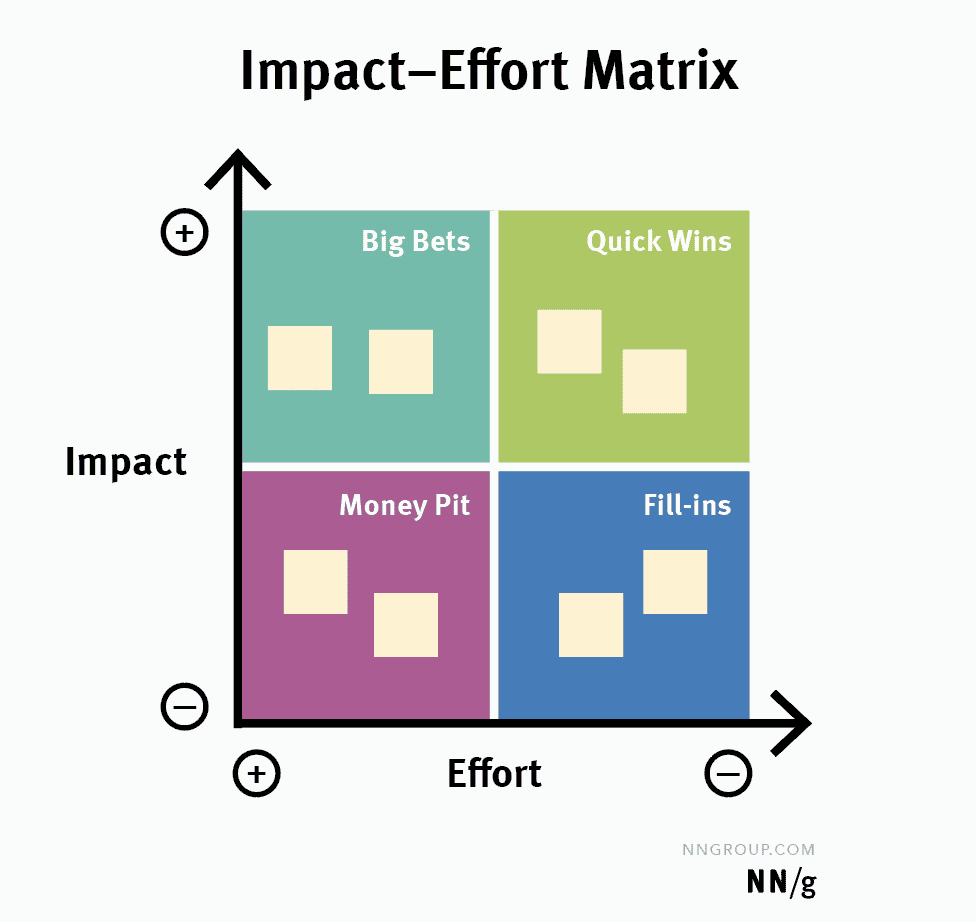
The impact vs. effort matrix
Using a simple matrix helps you identify “Quick Wins.” These are tasks that have a massive impact but take very little time to complete. For example, fixing a single error in your header template might resolve an issue across thousands of pages. This approach is much more effective than manually editing every single URL.
So, focus on issues that affect multiple pages first, as they can be the easiest quick wins.
Action plan and strategic execution
Once you have your list, create a detailed action plan with a timeline and clear deadlines.
This plan should account for your business’s unique needs, as you would when evaluating GEO vs. SEO for your future content strategy.
You should always address crawl errors and indexation blocks immediately before moving on to performance.
Set realistic phases for your fixes, such as a “Critical Fix Phase” for the first week, followed by a “Speed Phase” for the next month.
Responsibility and verification
Every task in your SEO audit should have a clear owner, whether it is a developer, a content writer, or an SEO manager. For example, your developers should handle server issues and HTTP status codes, while your content team can update title tags and meta descriptions.
Make sure to document every change you make in a central log to track results. After a fix is live, you must re-crawl your website with Screaming Frog to verify that the issue is truly resolved. This verification ensures that your SEO efforts are actually moving the needle for your rankings.
Best practices for ongoing technical SEO maintenance
Maintaining your technical health requires a proactive approach that prevents minor glitches from turning into major traffic drops.
Schedule regular audits and benchmarking
Consistent checkups ensure that your site stays aligned with search engine standards as your business grows.
You should schedule a full technical SEO site audit at least once per quarter, or monthly for larger web pages with frequent updates.
Documenting your technical SEO baseline allows you to measure progress over time and justify your budget to stakeholders.
Maintaining technical health helps Google read and rank your site. Regular SEO reporting helps you visualize these trends and track your growth from your starting point.
Set up automated monitoring alerts
Automation lets you catch critical errors the moment they occur, without manual daily checks. You must set up Google Search Console alerts to get email notifications for new mobile usability or breadcrumb errors.
Additionally, use uptime monitoring to ensure your server never goes down without your knowledge, and track your site speed weekly on key URLs.
Constant rank tracking for key pages is also vital for spotting sudden drops that might signal a technical penalty.
Build scalable processes and team education
Long-term success depends on having clear standards and a team that understands the importance of technical health. Find resources like the monday.com SEO growth course to see what companies did to improve their organic traffic and rankings.
You should also create standard operating procedures (SOPs) for content publishing and site updates to avoid SEO mistakes that often result from messy workflows. Share these with external teams that produce content or contribute to organic traffic.
Stay current by following the future of SEO and algorithm changes to ensure your strategy keeps pace as search evolves. Document tests and actions in a technical SEO guideline for your developers to follow.
And when you hire someone new, you need to train them. Even if they’re working on content and on-page SEO, they should still have access to this guide when they’re learning SEO. This keeps them aware of what to look out for and what happens behind the scenes.
Finally, always keep your tools and plugins up to date and monitor what competitors are doing to ensure you stay at the top of the SERP.
Conclusion
A technical SEO site audit is the essential foundation for all SEO efforts. You can have the best content in your niche, but if search engines cannot crawl or index your pages, your rankings will never reach their full potential.
Do not let technical issues hold your brand back. If you feel overwhelmed, start small. Run a Screaming Frog crawl today and just look for 404 errors. Once those are fixed, move on to your site speed. Technical SEO is a journey of continuous improvement, not a single destination. The key is to be consistent and proactive rather than waiting for your traffic to drop before you act.
By following this checklist, you ensure your website is ready for whatever Google throws at it next. If you want to stay ahead of the curve and get more deep dives like this, visit SEO Power Plays for our latest resources and courses.